Possible Solutions
No Connection to Message Broker
Check if the BROKER_SERVERS key in Consul is specified correctly.
Analyze NATS Streams
SEAL NATS comes with a CLI which can be used for analyzing NATS problems.
Literature - NATS CLI documentation
For a detailed description, refer to the NATS CLI documentation on GitHub.
Check the NATS Connection
Use the NATS CLI to check the connection to a NATS server.
- Open a command prompt.
-
Switch to the NATS installation directory. The NATS CLI is not in the search path of the operating system.
- Windows:
cd "C:\Program Files\SEAL Systems\seal-nats" - Linux:
cd /opt/seal/seal-nats
- Windows:
-
Check the connection:
- Windows:
.\nats.exe server check connection [-s nats://<hostname>:4222] - Linux:
./nats server check connection [-s nats://<hostname>:4222]
- Windows:
Activate NATS Debug and Trace Logging
In most cases, the standard NATS log already contains enough information to diagnose a problem.
Caution - log file size
Only activate trace logging in an emergency. The log file grows very quickly to an enormous size.
-
Open the NATS configuration file in an editor.
- Windows:
C:\ProgramData\SEAL Systems\config\nats.conf - Linux:
/opt/seal/etc/nats.conf
- Windows:
-
Add or activate the following lines:
debug: true trace: true -
Restart NATS.
plossys service stop seal-nats
plossys service start seal-nats
Activate NATS Monitoring
To check the NATS status, you can enable the monitoring port in nats.conf.
-
Open the NATS configuration file in an editor.
-
Windows:
C:\ProgramData\SEAL Systems\config\nats.conf -
Linux:
/opt/seal/etc/nats.conf
-
-
Activate the NATS monitoring port:
# HTTP monitoring port monitor_port: 8222 -
Restart NATS.
plossys service stop seal-nats plossys service start seal-nats -
If extern access to NATS monitoring is needed, open firewall port
8222. -
Open NATS monitoring in a browser.
http://localhost:8222 -
Cluster connections can be seen under
General.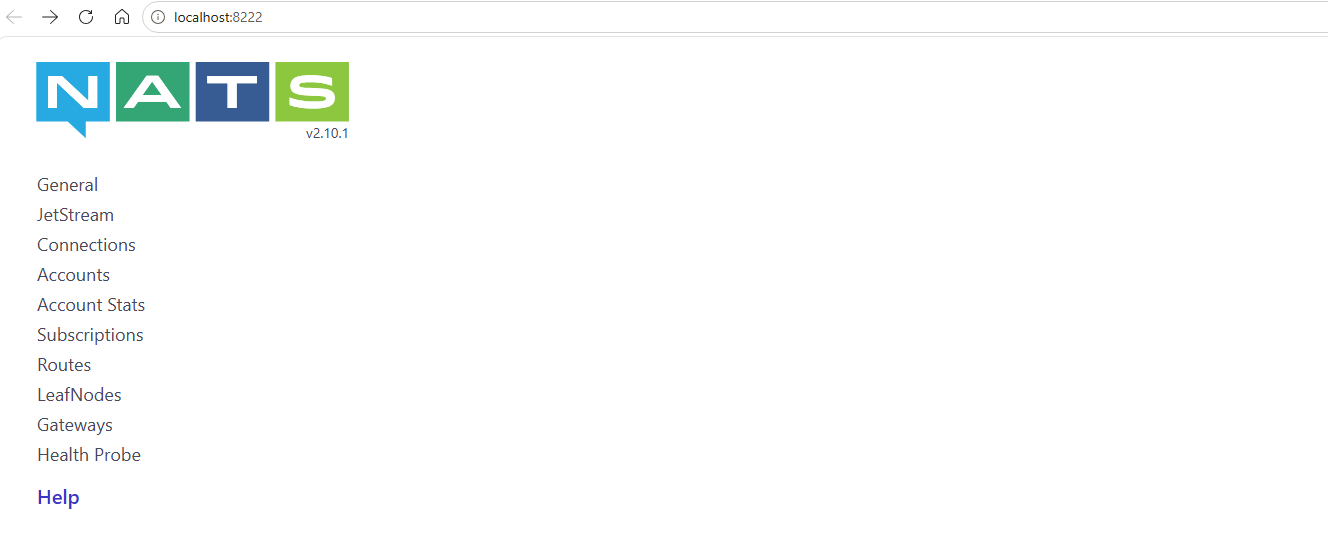
Clear Buckets
In PLOSSYS Output Engine 7.0.0, a misconfiguration of the OMS Submit configuration caused no SAP notifications to be sent. After fixing the configuration, the NATS buckets must be cleared.
-
Stop
seal-co-notifierservice. -
Switch to the NATS directory.
- Windows:
cd "C:\Program Files\SEAL Systems\seal-nats" - Linux:
cd /opt/seal/seal-nats
- Windows:
-
Clear the buckets in the NATS key-value store used by
seal-co-notifierservice.-
Windows:
./nats.exe kv del co-notifier-job-counters ./nats.exe kv del co-notifier-job-data ./nats.exe kv del co-notifier-device-counters ./nats.exe kv del co-notifier-printer-sap ./nats.exe kv del co-notifier-printer-mappings ./nats.exe kv del co-notifier-reply-groups -
Linux:
./nats kv del co-notifier-job-counters
./nats kv del co-notifier-job-data
./nats kv del co-notifier-device-counters
./nats kv del co-notifier-printer-sap
./nats kv del co-notifier-printer-mappings
./nats kv del co-notifier-reply-groups
-
Literature - buckets in the NATS key-value store
For more information about the buckets in the NATS key-value store used by seal-co-notifier service, refer to SAP notifications.